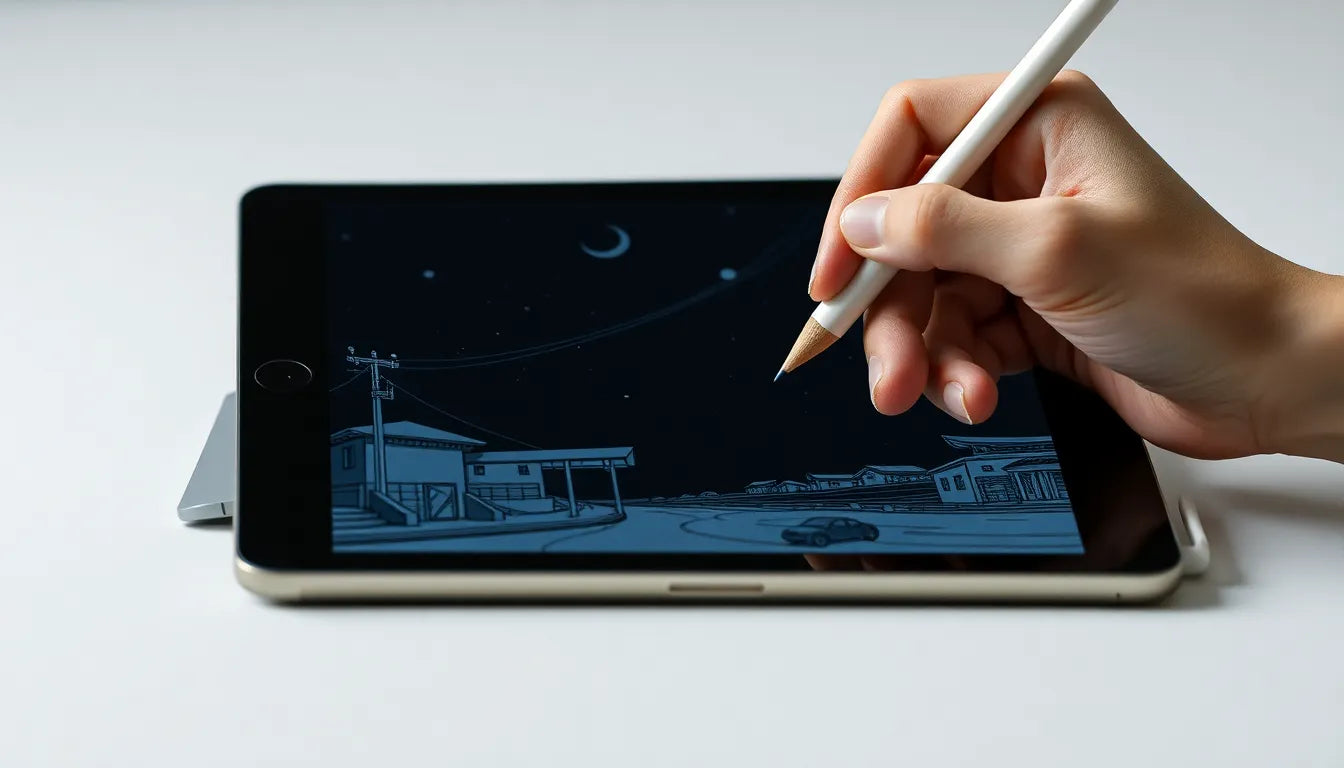
Creating animation on an iPad with a paper-like screen protector is easier than ever. Thanks to powerful apps like Procreate, Procreate Dreams, Clip Studio Paint, Adobe Fresco, Adobe Express, and Linearity Move, artists can now sketch, animate, edit, and publish content — all from a single device.
However, many beginners quickly discover one unexpected problem:
👉 Drawing animation on glass doesn’t feel natural.
That’s why more animators, illustrators, and digital creators are switching to paper-like screen protectors.
This guide explains why a paper-like screen protector is essential for iPad animation, and how it improves workflow, comfort, and drawing accuracy.
Why Animation on iPad Feels Difficult Without a Paper-Like Screen Protector
When using Apple Pencil directly on a bare screen, creators often experience:
- Slippery drawing surface
- Poor line control
- Hand fatigue during long sessions
- Difficulty creating consistent strokes
- Reduced precision in frame-by-frame animation
Animation requires thousands of controlled strokes, especially for:
- Keyframes
- Line cleanup
- Frame-by-frame animation
- Storyboarding
A paper-like screen protector adds resistance similar to real paper, giving artists better control over every movement.
How a Paper-Like Screen Protector Improves Animation Workflow
✏️ 1. Natural Drawing Feel for Frame-by-Frame Animation
Animation depends heavily on muscle memory.
A paper-texture surface provides:
✅ Better stylus friction
✅ Stable linework
✅ Improved stroke accuracy
✅ More confident sketching
Artists transitioning from traditional drawing adapt much faster when the screen feels closer to paper.

🎬 2. Perfect for Popular iPad Animation Apps
Beginner Animation Apps
Apps like Procreate and Adobe Fresco become significantly easier for:
- Sketch animation
- GIF creation
- Social media motion graphics
- Illustration-based animation
Beginners gain better control immediately.
Professional Animation Workflow
Advanced creators using Procreate Dreams or Clip Studio Paint benefit from:
- Cleaner line refinement
- Faster storyboard production
- Reduced correction time
- Improved precision for detailed scenes
For long animation sessions, surface comfort directly impacts productivity.
Eye Comfort Matters: Anti-Glare for Long Creative Sessions
Animation often means working for hours.
High-quality paper-like screen protectors usually include:
- Anti-glare coating
- Reduced reflections
- Improved screen visibility
- Less eye strain
Whether working under studio lights or near windows, creators can maintain focus without constant brightness adjustments.
Protect Your Apple Pencil Tip While Animating
Heavy animation work accelerates Pencil tip wear.
A premium paper-like screen protector helps:
- Reduce uneven friction
- Extend Apple Pencil tip lifespan
- Maintain consistent drawing feedback
This makes it ideal for daily creators, students, and professional animators alike.
Who Should Use a Paper-Like Screen Protector?
A paper-like screen protector is ideal for:
- Animation beginners learning digital drawing
- Illustration artists moving to iPad
- Content creators & social media designers
- Storyboard artists
- Students studying animation or design
- Professional digital animators
If your iPad is a creative tool, not just a tablet, upgrading the drawing surface makes a noticeable difference.
Paper-Like Screen Protector vs Glass Screen for Animation
| Feature | Bare Glass | Paper-Like Protector |
| Drawing Control | Low | High |
| Line Stability | Medium | Excellent |
| Anti-Glare | ❌ | ✅ |
| Long Session Comfort | ❌ | ✅ |
| Animation Precision | Limited | Improved |
Final Thoughts: The First Upgrade Every iPad Animator Should Make
Many creators think upgrading software or hardware is the first step toward better animation.
In reality:
Drawing experience determines creative efficiency.
Before changing your workflow, improving your screen surface can dramatically enhance control, comfort, and creativity.
A paper-like screen protector transforms your iPad from a glass display into a true digital canvas — helping you focus on what matters most:
🎨 Creating better animation.

Top 5 iPad Animation Apps for Beginners
Pairing the right app with a paper-like screen protector ensures you get the best experience. Here are five apps ideal for beginners:
- Procreate – A beginner-friendly app that allows you to create animations, GIFs, scenes, and illustrations. Its intuitive interface makes it easy to start learning animation fundamentals.
- Procreate Dreams – Perfect for intermediate users who want timeline control and audio support for more advanced projects.
- Clip Studio Paint – A professional-level app supporting cel animation, line refinement, and detailed scene creation. Ideal for artists moving from traditional media to digital.
- Adobe Fresco – Great for beginners who want realistic brush textures while creating animated illustrations or GIFs.
- Adobe Express – Fast, simple, and perfect for social media animation or beginner-friendly motion projects.


Leave a comment
All comments are moderated before being published.
This site is protected by hCaptcha and the hCaptcha Privacy Policy and Terms of Service apply.